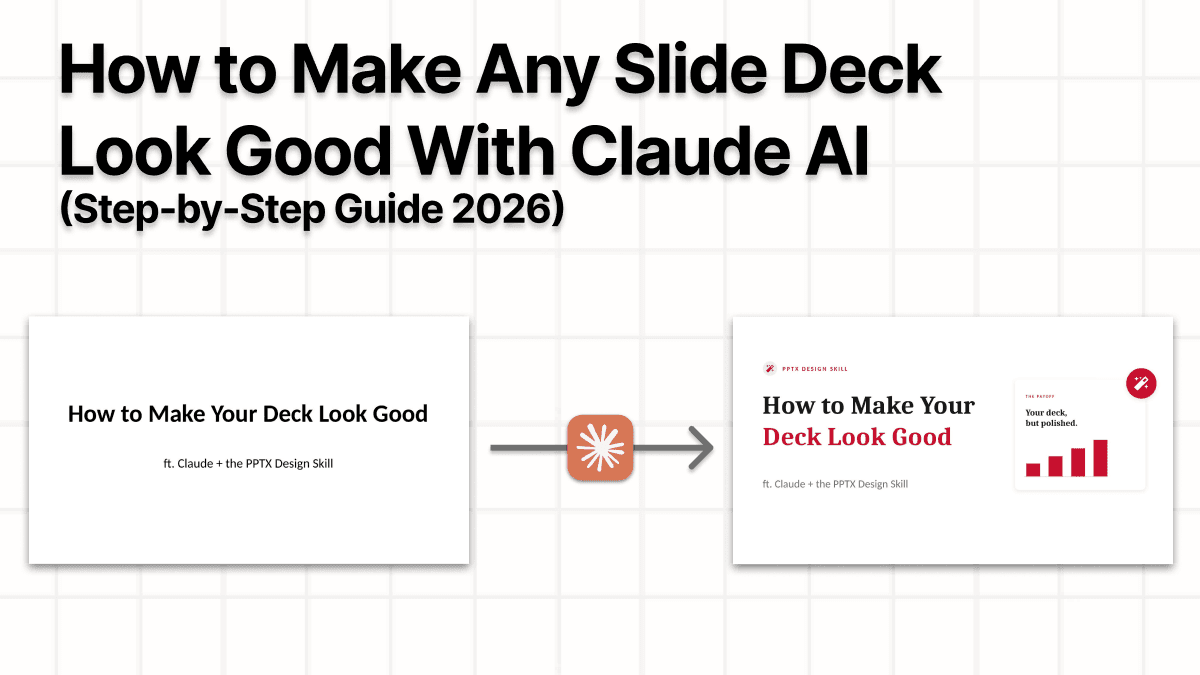
How to Make Any Slide Deck Look Good With Claude (Step-by-Step Guide 2026)
By Rohit5 min read
Share
How to Make Any Slide Deck Look Good With Claude AI (No Design Needed)
Quick answer: Open Claude (the desktop app or claude.ai), turn on file creation in Settings, start a new chat, upload your slides, and ask Claude to redesign them with its built-in PowerPoint skill. Answer a couple of quick questions and you get back a clean, fully editable deck in about a minute. No designer, no template, no design skills required.
Simply having good ideas in a deck does not make it powerful. Decks can look rough because everything fights for attention at once: tiny text, ten bullets per slide, clashing colors, a stretched logo in the corner. But you can easily fix that with Claude. It has a built-in PowerPoint skill that rebuilds your slides with proper layout, hierarchy, color, type, and spacing, while keeping your actual content. Here is the whole process, start to finish.
What you will need
- A Claude account. Download Claude for Mac or Windows, or just use claude.ai in your browser.
- A presentation you want to improve. An existing .pptx is ideal, but rough notes work too.
- A few minutes to spare.
Claude builds your new deck by writing a file, so this setting has to be on. You only do it once.
- Go to Settings > Capabilities.
- Turn on Code execution and file creation.
This is the one step most people miss. With it on, Claude's built-in PowerPoint skill is ready, and Claude reaches for it automatically whenever you ask for slides. You do not have to install or trigger anything else.
Step 1: Open Claude
Open the Claude desktop app, or go to claude.ai and sign in. Both have this presentation skill pre-installed, so use whichever you like.
Step 2: Start a new chat and add your deck
Open a new chat and attach your presentation. Drag the .pptx straight into the message box, or use the attachment button. No deck yet? Paste your rough notes or an outline instead, and Claude will build a clean deck from those.
Step 3: Paste the prompt
Tell Claude what you want in plain language. Here is a prompt that works well. Copy it as is, or adjust the details:
Use the PPTX Design Skill to make my deck look clean and professional: one idea per slide, clear visual hierarchy, a consistent palette, large readable type, and high-quality images. Keep all of my content.Step 5: Answer Claude's questions
Claude usually asks a few quick questions before it starts: your brand colors, and roughly how many slides. Pick from the available options or answer in a sentence or two. The more it knows, the more the result feels made for you instead of generic.
Then it gets to work.
Step 6: Download your polished deck
In a few minutes, Claude hands back a redesigned presentation. Click to download the .pptx. It opens in PowerPoint, Keynote, or Google Slides (just import it), and every slide stays fully editable, so you can fine-tune anything. Same content, far better design.
See the difference
Here is the kind of change to expect. Same message, very different first impression.

Before: everything bland, nothing standing out.
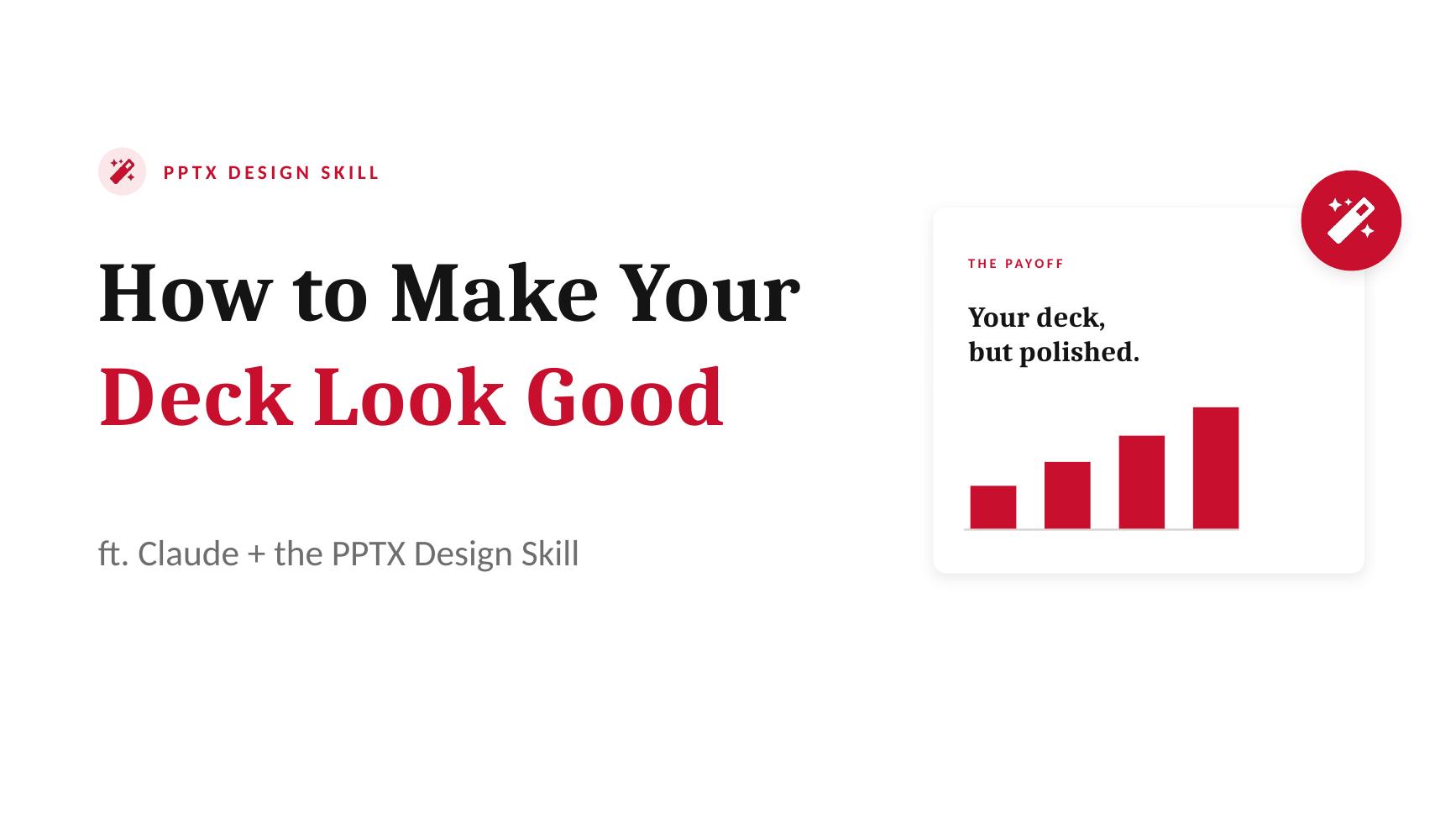
After: one clear message you can read with supporting infographics.
Common problems and quick fixes (if you use your own prompt)
- No file to download, or nothing happens. File creation is probably off. Go to Settings > Capabilities and turn on Code execution and file creation.
- Claude reworded your content. Add "keep my exact wording" to the prompt, then ask it to redo the deck.
- The file is large or has many slides. Ask Claude to redesign in batches, for example "redo slides 1 to 10 first."
- It does not match your brand. Give it your colors, fonts, and logo, then ask for another pass.
Frequently asked questions
Do I need any design skills? No. You describe what you want in plain words, and Claude handles layout, color, type, and spacing for you.
Is it free? You can do this on Claude's free plan, and downloading the app is free too. Heavy users may want Pro or Max for higher limits, but the workflow is identical.
Will it keep my content? Yes, when you ask it to. The prompt above tells Claude to keep all your content and slide order. You can also tell it to keep your exact wording.
Can it work without an existing deck? Yes. Paste rough notes or an outline and Claude will build a clean deck from scratch.
Is the new deck editable? Yes. You get a real .pptx file, not an image. Open and edit it in PowerPoint, Keynote, or Google Slides.
Does it work on Mac and Windows? Yes. The desktop app runs on Mac and Windows, and claude.ai works in any browser.
Is there a version inside PowerPoint? Yes. Paid plans (Pro, Max, Team, and Enterprise) can add the Claude for PowerPoint add-in to edit slides without leaving the app. The chat workflow above is the fastest way to start, and it works on the free plan.
Try it on your next deck
Open Claude, drop in the deck that has been bugging you, and paste the prompt above. Give it a few minutes. Get Claude here if you do not have it yet.
If this saved you some time, follow for more simple ways to work smarter with AI. A new guide goes out almost every day.
Share