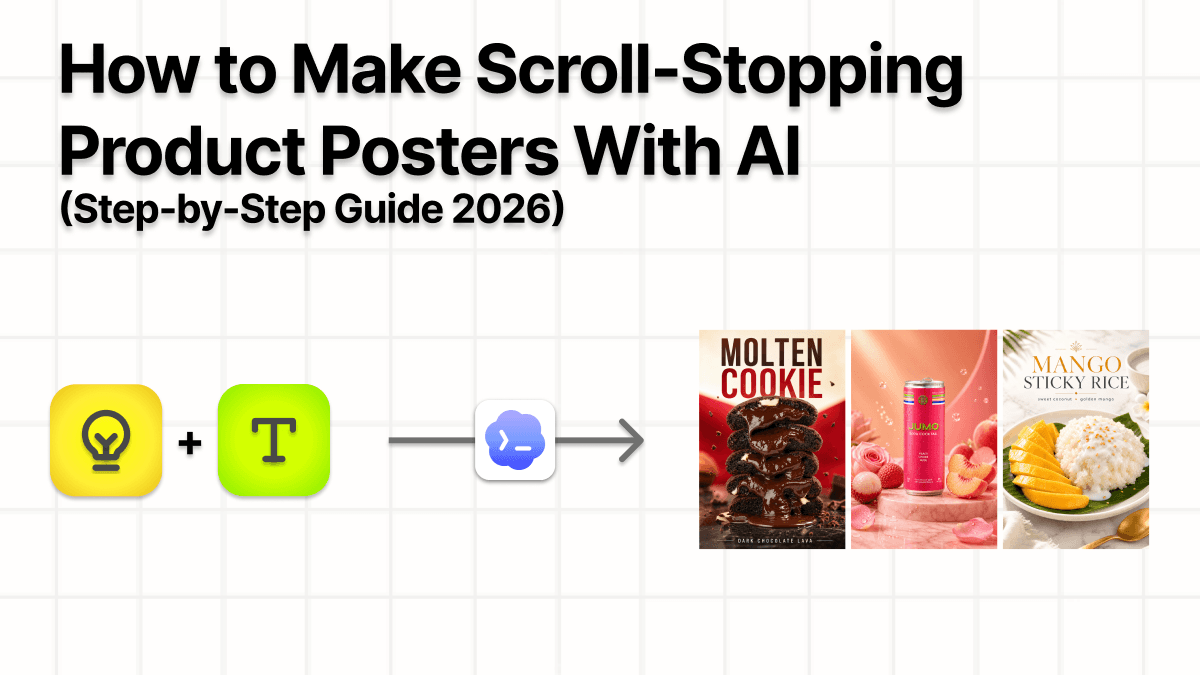
How to Make Scroll-Stopping Product Posters With AI | Step-by-Step Guide
By Rohit6 min read
Share
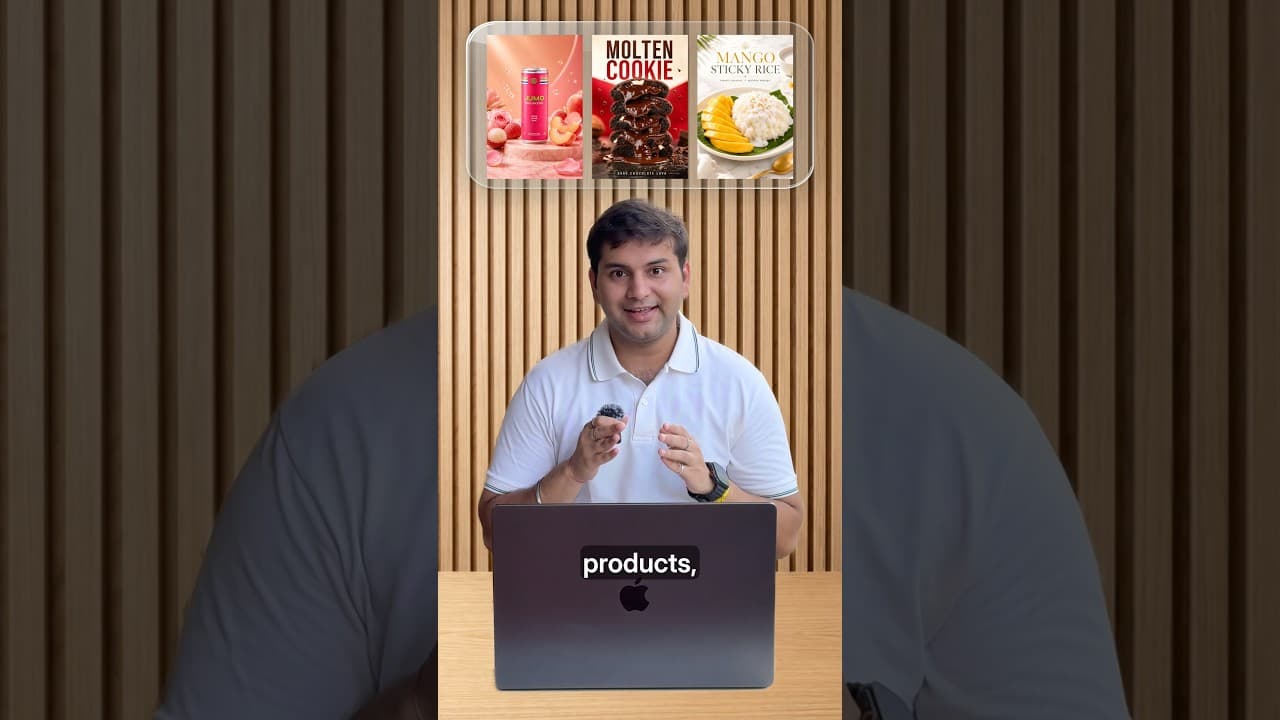
How to Make Scroll-Stopping Product Posters With AI | Step-by-Step Guide
Quick answer: To make product posters with AI, open the Codex app, add one skill file, then invoke it with your product photo and a short prompt. The skill writes a ready-to-run image prompt, and your image generator turns it into a polished, Instagram-ready poster. A few minutes and no design skills needed.
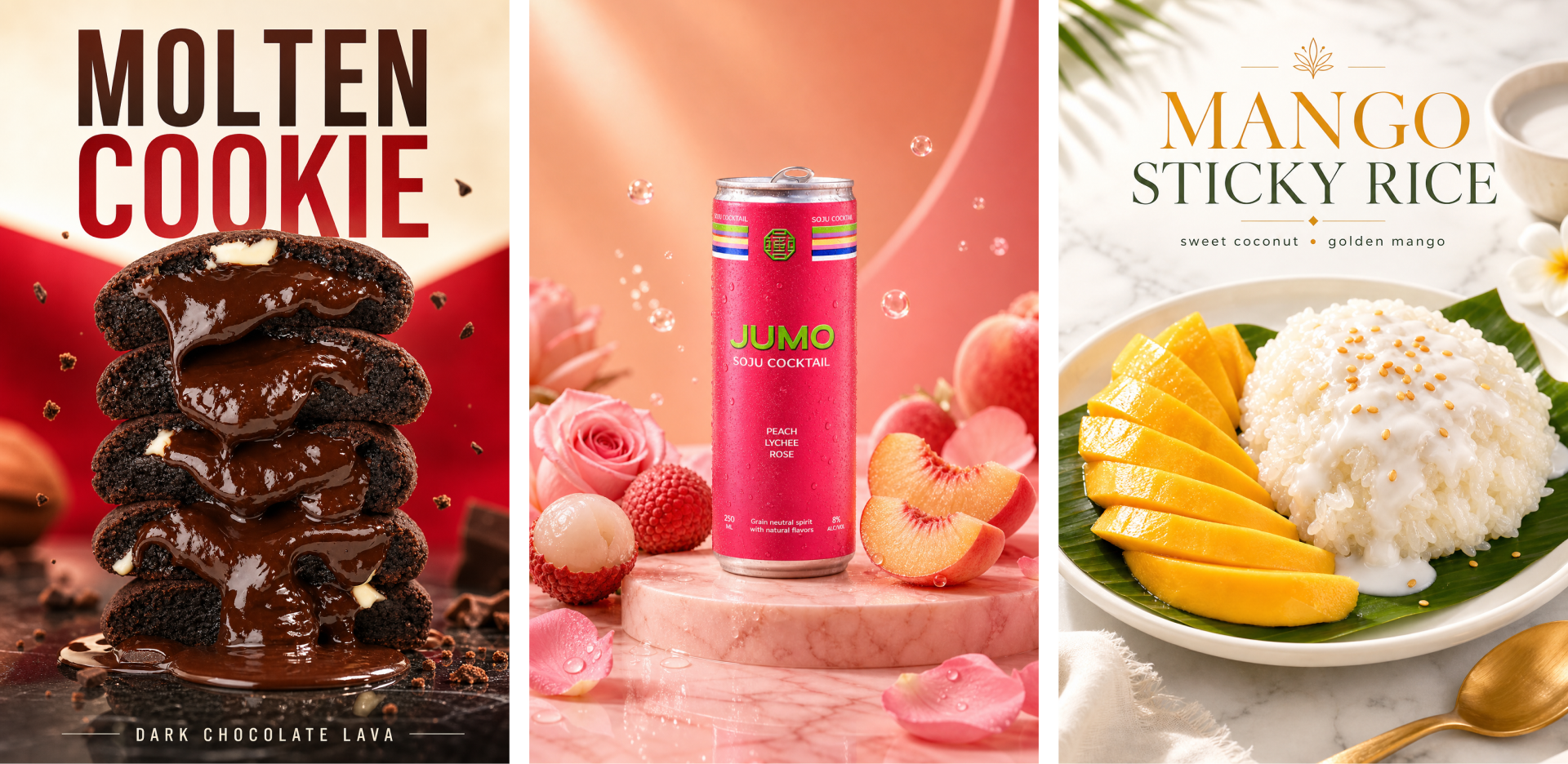
Most product photos are not bad. They are just plain. A clean shot on a white background says "catalogue," not "stop scrolling." A good poster adds the light, the mood, and the framing that make people look twice. The problem is that designing one usually means hiring someone or fighting with a design tool. This skips all of that. You hand Codex a photo, it writes the art direction for you, and you get a poster back. Here is the whole process, start to finish.
You can also use this same process with any app or tool supporting skills and image generation or even use a multi-tool setup as per what's available to you.
What you will need
- The Codex app with skills turned on.
- Your product references. Either photos or a description.
- A few minutes to spare.
Step 1: Open the Codex app
Open Codex and start a fresh chat.
Step 2: Add the poster skill (one time)
This is the part that makes the magic repeatable. You add a small skill file once, and it stays in Codex for every poster you make after this.
Download the skill file:
Upload that file to the chat and send this exact prompt:
add this skill from the attached fileCodex reads the file and adds it to its skill set. You only do this once. If you prefer the menu route, you can also manage skills from Plugins in the top left of Codex.
What this skill actually is. The file is a skill called
image-prompt-helper. It turns a product photo, a reference poster, or even a one-line idea into a single, ready-to-run image prompt. Think of it as an art director in a file: it decides the subject, the light, the lens and framing, the setting, the mood, and any text on the poster, then hands you one clean prompt you can run in any image generator. You are not writing prompts by hand anymore. The skill writes the shot brief for you.
Step 3: Invoke the skill and add your product photo
Call the new skill in your chat, then attach a reference image: a photo of your product, or a poster style you want to match.
No reference image? Just describe the product. The skill works from words too. Tell it the shape, color, packaging, and label (for example, "a matte black cold-brew can with a copper logo"), and it will build the poster from your description alone. A photo gives you more accuracy, but it is not required.
Step 4: Paste the prompt
Now the fun part. Use this exact prompt. Replace <your product name> with your product, and make sure the product image is attached:
Help me write a prompt for this <your product name> shown in the attached image to create an eye-catching instagrammable poster for it.
Then use the image gen skill with the generated prompt to create itThat single prompt does two jobs. First the poster skill writes the detailed image prompt for you. Then it hands that prompt to the in-built image generator to produce the actual poster. One message, finished art.
Step 5: Generate and grab your poster
Codex writes the prompt, runs it, and hands back your poster in a couple of minutes. Ask for a square 1:1 or a vertical 4:5 crop if you want it sized for an Instagram feed or story. Do not love the first version? Say "make the background darker" or "try a warmer light" and run it again. Each pass takes a couple of mins.
And there you have it. Scroll-stopping product posters, made in a few minutes.
Tips for a better poster
A few small moves to tailor the result further or just work smoother with the AI:
- Give your brand colors. Paste your hex codes (for example,
#C8102E) and ask the skill to build the palette around them. - Ask for the crop up front. Say "1:1 for feed" or "4:5 for Instagram" so you do not have to recrop later.
- Attach a style reference. If you have a poster look you love, add it alongside your product photo and ask the skill to match the vibe, not copy it.
- Iterate one change at a time. Change the light, or the background, or the text, but not all three at once. You will get cleaner results.
Common problems and quick fixes
- Codex did not pick up the skill. Re-upload the file and send "add this skill from the attached file" again, or add it from Plugins in the top left.
- The poster ignored my product. Make sure the product image is actually attached in the same message, and name the product in the prompt.
- The text on the poster came out garbled. Shorten it. One short line renders far more reliably than a full sentence.
- Wrong shape for Instagram. Ask again with "make it a 4:5 vertical" or "square 1:1 crop."
Frequently asked questions
What is the Codex skill file for making posters? It is a skill called image-prompt-helper-v2. It turns a product photo or a short description into a single, ready-to-run image prompt, so you get a designed poster instead of a generic one.
Do I need any design skills? No. You describe what you want in plain words, and the skill handles the art direction: light, framing, mood, and layout.
Do I need a reference image? No. A product photo helps with accuracy, but you can simply describe the product (shape, color, packaging, label) and the skill will build the poster from your words.
Is it really under 60 seconds? Adding the skill is a one-time step. After that, going from prompt to finished poster takes about a minute, and re-runs take seconds.
Can I make it Instagram-ready? Yes. Ask for a square 1:1 or a vertical 4:5 crop and the poster comes out sized for the feed or stories.
Can I use my brand colors and logo? Yes. Paste your hex codes and attach your logo, then ask the skill to build around them.
Does the skill generate the image itself? It writes the image prompt, then passes it to your image generator to create the poster. That is the two-step the single prompt in Step 4 handles for you.
Make product posters with AI on your next launch
Open Codex, add the skill file, drop in a product photo, and paste the prompt. That's it!
Want more simple ways to work smarter with AI? Follow for the next one.
Related reading: How to Make Any Slide Deck Look Good With AI and The Best AI Prompts for Product Marketing.
Share